Integration Of Selenium With Saucelabs


What is Saucelabs?
Sauce Labs is a cloud platform for executing automated and manual mobile and web tests. Sauce Labs supports running automated tests with Selenium WebDriver (for web applications) and Appium (for native and mobile web applications).

Why do we need Saucelabs?
Straight forward answer : Browser Compatibility. We need to test all our testcases in various versions of browsers and various platforms too. We can’t install all those stuff in our local box. Now this Saucelabs plays a major role.

How to integrate your Test scripts with Saucelabs?
It’s quite simple buddies, Just need to follow few steps
Step 1: Sign up for a Sauce Labs account (Free Trail)
Step 2: Get your Access Key from your account (Login and click on ‘My Account‘, Now you will see Access key)
Step 3: Choose the Testcases which you want to run on the cloud
Step 4: Check your Results (Click on ‘Archives‘ to view the video, Screenshots)

Here’s a sample code for your reference


import java.net.URL;

import org.openqa.selenium.WebDriver;
import org.openqa.selenium.remote.DesiredCapabilities;
import org.openqa.selenium.remote.RemoteWebDriver;
import org.testng.annotations.AfterTest;
import org.testng.annotations.Test;

public class SauceSele {

// enter your saucelabs user name here
public static final String USERNAME = “YourUserName”;

//enter your access key here
public static final String ACCESS_KEY = “XXXXXXXXXXXXXXXXXXXXXX55641A”;
public static final String SauceLabURL = “http://” + USERNAME + “:”
+ ACCESS_KEY + “@ondemand.saucelabs.com:80/wd/hub”;
private WebDriver driver;

@Test(priority = 1)
public void test_Windows_Firefox() throws Exception {
DesiredCapabilities caps = DesiredCapabilities.firefox();
caps.setCapability(“platform”, “Windows 7”);
caps.setCapability(“version”, “38”);
caps.setCapability(“name”, “Testing on Firefox 38”);
this.driver = new RemoteWebDriver(new URL(SauceLabURL), caps);
driver.get(“https://seleniumbycharan.wordpress.com/”);
System.out.println(driver.getTitle());
System.out.println(“BrowserName :” + caps.getBrowserName() + ” – ”
+ “Version : ” + caps.getVersion());
System.out
.println(“————————————————————————————“);
}

@Test(priority = 2)
public void test_Windows_IE() throws Exception {

DesiredCapabilities caps = DesiredCapabilities.internetExplorer();
caps.setCapability(“platform”, “Windows 8.1”);
caps.setCapability(“version”, “11”);
caps.setCapability(“name”, “Testing on IE 11”);

this.driver = new RemoteWebDriver(new URL(SauceLabURL), caps);
driver.get(“https://seleniumbycharan.wordpress.com/”);
System.out.println(driver.getTitle());
System.out.println(“BrowserName :” + caps.getBrowserName() + ” – ”
+ “Version : ” + caps.getVersion());
System.out
.println(“————————————————————————————“);

}

@Test(priority = 3)
public void test_Windows_Chrome() throws Exception {

DesiredCapabilities caps = DesiredCapabilities.chrome();
caps.setCapability(“platform”, “Windows XP”);
caps.setCapability(“version”, ” 43.0″);
caps.setCapability(“name”, “Testing on Chrome 43”);

this.driver = new RemoteWebDriver(new URL(SauceLabURL), caps);
driver.get(“https://seleniumbycharan.wordpress.com/”);
System.out.println(driver.getTitle());
System.out.println(“BrowserName :” + caps.getBrowserName() + ” – ”
+ “Version : ” + caps.getVersion());
System.out
.println(“————————————————————————————“);

}

@Test(priority = 5)
public void test_Mac_Safari() throws Exception {

DesiredCapabilities caps = DesiredCapabilities.safari();
caps.setCapability(“platform”, “OS X 10.9”);
caps.setCapability(“version”, “7”);
caps.setCapability(“name”, “Testing on Safari”);

this.driver = new RemoteWebDriver(new URL(SauceLabURL), caps);
driver.get(“https://seleniumbycharan.wordpress.com/”);
System.out.println(driver.getTitle());
System.out.println(“BrowserName :” + caps.getBrowserName() + ” – ”
+ “Version : ” + caps.getVersion());
System.out
.println(“————————————————————————————“);

}

@Test(priority = 6)
public void test_Linux_Firefox() throws Exception {

DesiredCapabilities caps = DesiredCapabilities.firefox();
caps.setCapability(“platform”, “Linux”);
caps.setCapability(“version”, “36”);
caps.setCapability(“name”, “Testing on Linux firefox”);

this.driver = new RemoteWebDriver(new URL(SauceLabURL), caps);
driver.get(“https://seleniumbycharan.wordpress.com/”);
System.out.println(driver.getTitle());
System.out.println(“BrowserName :” + caps.getBrowserName() + ” – ”
+ “Version : ” + caps.getVersion());
System.out
.println(“————————————————————————————“);

}

@AfterTest
public void tearDown() throws Exception {
driver.quit();
System.out.println(“driver was closed”);
}
}

That’s it! All your testcases was executed on different versions and different platforms.You can view the results on clicking ‘Archives‘ in your saucelabs dashboard.

What did I do here? No browser was invoked? Surprised?
Generally we’ll use WebDriver driver = new FirefoxDriver(); command to invoke a browser.
But here we don’t need that, we call RemoteWebDriver class to connect remote driver pointed at ondemand.saucelabs.com specifying your Sauce Labs account credentials and desired browser configuration.

We have DesiredCapabilities to set the configuration.
* browser Represents the browser to be used as part of the test run.
* version Represents the version of the browser to be used as part of the test run.
* os Represents the operating system to be used as part of the test run.
You can also name your job too.

You can also run your tests in parallel using TestNG, JUNIT yada yada. You can also integrate with your CI (Jenkins).This is quite simple and useful right!!

Compatibility Testing Using Browserstack with Selenium


BrowserStack allows users to make manual and automation testing on different browsers and operation systems.To execute your test scripts using BrowserStack, you need to set parameters of Browsers and Platforms.

There are few steps to be followed to integrate Selenium with BrowserStack.

Step 1 : SignUp for BrowserStack account (Free Trail)
Step 2 : Get your UserName and Access Key (Click on Account at the top and click on ‘Automate‘)
Step 3 : Create your Test scripts using TestNG
Step 4 : Create a TestNG.xml file to run tests in parallel (set platforms and browsers with desired versions).
Step 5 : Execute TestNG.xml.
Step 6 : To view your results, Login and click on ‘Automate‘ link. You can view your project results.

Here I’m providing a sample code. I’m using TestNG to run tests in parallel.

package package1;

import java.io.File;
import java.io.IOException;
import java.net.URL;

import org.apache.commons.io.FileUtils;
import org.openqa.selenium.By;
import org.openqa.selenium.Keys;
import org.openqa.selenium.OutputType;
import org.openqa.selenium.TakesScreenshot;
import org.openqa.selenium.WebDriver;
import org.openqa.selenium.WebElement;
import org.openqa.selenium.remote.Augmenter;
import org.openqa.selenium.remote.DesiredCapabilities;
import org.openqa.selenium.remote.RemoteWebDriver;
import org.testng.Assert;
import org.testng.ITestResult;
import org.testng.annotations.AfterMethod;
import org.testng.annotations.AfterTest;
import org.testng.annotations.BeforeTest;
import org.testng.annotations.Parameters;
import org.testng.annotations.Test;

public class BrowserStackTestCase {

private WebDriver driver;
public static final String USERNAME = “ARORAGLOBALSERVICES”;
public static final String AUTOMATE_KEY = “YourAccessKey”;
public static final String URL = “http://” + USERNAME + “:” + AUTOMATE_KEY
+ “@hub.browserstack.com/wd/hub”;

@BeforeTest
@Parameters(value = { “browser”, “version”, “platform” })
public void setUp(String browser, String version, String platform)
throws Exception {
DesiredCapabilities capability = new DesiredCapabilities();
capability.setCapability(“platform”, platform);
capability.setCapability(“browserName”, browser);
capability.setCapability(“browserVersion”, version);
capability.setCapability(“project”, “MyProject”);
capability.setCapability(“build”, “2.01”);
driver = new RemoteWebDriver(new URL(URL), capability);
}

@Test(priority = 1)
public void testcase001() throws Exception {
driver.get(“http://www.google.com”);
System.out.println(“Page title : ” + driver.getTitle());
Assert.assertEquals(“Google”, driver.getTitle());
WebElement element = driver.findElement(By.name(“q”));
element.sendKeys(“Merry christmas”);
element.sendKeys(Keys.ENTER);

}

@Test(priority = 2)
public void testcase002() {
driver.get(“http://seleniumhq.org”);
System.out.println(“Page title : ” + driver.getTitle());
Assert.assertEquals(“Selenium – Web Browser Automation”,
driver.getTitle());
}

@AfterMethod
public void takeScreenShot(ITestResult result) {
if (result.getStatus() == ITestResult.FAILURE) {
driver = new Augmenter().augment(driver);

File srcFile = ((TakesScreenshot) driver)
.getScreenshotAs(OutputType.FILE);
try {
FileUtils.copyFile(srcFile, new File(“D:\\Screenshot”
+ result.getParameters().toString() + “.png”));
} catch (IOException e) {
e.printStackTrace();
}
}
}

@AfterTest
public void tearDown() throws Exception {
driver.quit();
}

}

Now setup your configuration in xml file. Copy the below code:

  Most Frequently Asked Interview Questions" - Manual Testing


Q. What is a Defect?
Ans. Any flaw imperfection in a software work product.
(or)
Expected result is not matching with the application actual result.

Q. What is Severity?
Ans. It defines the important of defect with respect to functional point of view i.e. how critical is defect  with respective to the application.

Q. What is Priority?
Ans. It indicates the importance or urgency of fixing a defect

Q. What is Re-Testing?
Ans. Retesting the application to verify whether defects have been fixed or not.

Q. What is Regression Testing?
Ans. Verifying existing functional and non functional area after making changes to the part of the software or addition of new features.

Q. What is Recovery Testing?
Ans. Checking if the system is able to handle some unexpected unpredictable situations is called recovery testing.

Q. What is End-to-End Testing?
Ans. Testing the overall functionality of the system  including the data integration among all the modules is called end to end testing.

Q. What is Exploratory Testing?
Ans. Exploring the application, understanding the functionality, adding (or) modifying existing test cases for better testing is called exploratory testing.

Q.What is functionality Testing
Ans. Functionality testing is performed to verify that a software application performs and functions correctly according to design specifications.

Q. What is Non-functionality Testing?
Ans. Validating various non functional aspects of the system such as user interfaces, user friendliness security, compatibility, Load, Stress and Performance etc is called non functional testing.
 

10 Most Frequently Asked Interview Questions

I have got many request for the manual testing interview questions. So, here are some of the interview questions which you would like to know about.


Q1. What is a test plan?

A: A software project test plan is a document that describes the objectives, scope, approach and focus of a software testing effort. The process of preparing a test plan is a useful way to think through the efforts needed to validate the acceptability of a software product. The completed document will help people outside the test group understand the why and how of product validation. It should be thorough enough to be useful, but not so thorough that none outside the test group will be able to read it.

Q2. What is configuration management?

A: Configuration management (CM) covers the tools and processes used to control, coordinate and track code, requirements, documentation, problems, change requests, designs, tools, compilers, libraries, patches, changes made to them and who makes the changes. Rob Davis has had experience with a full range of CM tools and concepts. Rob Davis can easily adapt to your software tool and process needs.

Q3. What if the software is so buggy it can't be tested at all?

A: In this situation the best bet is to have test engineers go through the process of reporting whatever bugs or problems initially show up, with the focus being on critical bugs. Since this type of problem can severely affect schedules and indicates deeper problems in the software development process, such as insufficient unit testing, insufficient integration testing, poor design, improper build or release procedures, managers should be notified and provided with some documentation as evidence of the problem.

Q4. How do you know when to stop testing?

A: This can be difficult to determine. Many modern software applications are so complex and run in such an interdependent environment, that complete testing can never be done. Common factors in deciding when to stop are...
  • Deadlines, e.g. release deadlines, testing deadlines;
  • Test cases completed with certain percentage passed;
  • Test budget has been depleted;
  • Coverage of code, functionality, or requirements reaches a specified point;
  • Bug rate falls below a certain level; or
  • Beta or alpha testing period ends.

Most Frequently Asked Testing Types


In this post, we are trying to cover the most frequently asked testing terms in most of the interviews. 
 
Q1. What is Testing:

It is process of verifying are we developing the right product or not and also    validating the developed product is right or not
     Software Testing = Verification + Validation

Q2. What is Verification?

It is a process of verifying: Are we developing the right product or not. Known as static testing.

Q3.What is Validation?

It is a process of validating: Does the developed product is right or not. Also called as dynamic testing.

Q4. What is black box testing?

Black box testing is functional testing, not based on any knowledge of internal software design or code. Black box testing are based on requirements and functionality.

Q5. What is white box testing?

White box testing is based on knowledge of the internal logic of an application's code. Tests are based on coverage of code statements, branches, paths and conditions.

Q6. What is unit testing?

Unit testing is the first level of dynamic testing and is first the responsibility of developers and then that of the test engineers. Unit testing is performed after the expected test results are met or differences are explainable/acceptable.

Running Selenium Code on Multiple Browsers

Below is the code which might be helpful to you. This code will allow you to launch your URL in Google Chrome, Internet Explorer as well as in Firefox:

public class browsers {
public static WebDriver driver = null;
public static void openbrowser (String browser)
{
if (browser.equalsIgnoreCase("Firefox"))
{
System.out.println("initiated");
driver = new FirefoxDriver();
}

Elements of JMeter


Below figure represents most widely used components of JMeter called as elements:

JMeterTutorial

Studying all of the JMeter Components will be confusing so I am covering only the most important JMeter elements:
  1. Thread Group
  2. Samplers
  3. Configuration
  4. Listeners

Thread Group

Event By ThoughtWorks : Beyond Automation - Continuous Integration : Gurgaon


This is just to inform you about the upcoming event on Beyond Automation - Continuous Integration. This event is being organised by ThoughtWorks on Saturday 06 Dec, 2014 09:00 AM at:

ThoughtWorks Technologies (India) Pvt Ltd. 

6th Floor, 
Tower Building No. 14
DLF Cyber City Phase III
Gurgaon-122002, Haryana

Beyond Automation - Continuous Integration’ will be an interactive workshop which aims to challenge your skill set to a level beyond automation. Continuous delivery has become the mantra in the agile world to get the automation test results feedback at the earliest in a short span of time. When there are frequent code pushes in a distributed or non-distributed team, it becomes important to have your set of tests with each build as every time doing it manually is a difficult task.

The topics covered will be appropriate for testers with basic knowledge of selenium. Also do bring your own Windows machines having Java and Selenium setup.

For registration, do visit below link:

If you face any issue, you can contact me by completing the Contact Us form.

JMeter Tutorial : Introduction to JMeter


This is just an introduction to JMeter. Below are some points covered in this video:

- How to install and configure JMeter?
- Why JMeter and Features of JMeter
- History of JMeter
- Parameters of JMeter
- Introduction to Sampler, Threads, Listeners, Controllers, Timer, Pre-Processor, Post-Processor, Test Plan, Work Bench etc


Continuous Integration Tool : Jenkins + Selenium + TestNG


A complete tutorial for Continuous Integration Tool : Jenkins

What is Continuous Integration?

“Continuous Integration is a software development practice where members of a team integrate their work frequently, usually each person integrates at least daily - leading to multiple integrations per day. Each integration is verified by an automated build (including test) to detect integration
errors as quickly as possible” – Martin Fowler

CI - Workflow


CI - Benefits

  • — Immediate bug detection
  •  No integration step in the lifecycle
  •  A deployable system at any given point
  • — Record of evolution of the project

Jenkins

About Jenkins

  • Branched from Hudson
  • —Java based Continuous Build System
  • Runs in servlet container
  • Glassfish, Tomcat
  • Supported by over 400 plugins
    • SCM, Testing, Notifications, Reporting, Artifact Saving, Triggers, External Integration
  • Under development since 2005
  • http://jenkins-ci.org/

Jenkins - History


  • 2005 - Hudson was first release by Kohsuke Kawaguchi of Sun Microsystems
  • 2010 – Oracle bought Sun Microsystems
    • Due to a naming dispute, Hudson was renamed to Jenkins
    • Oracle continued development of Hudson (as a branch of the original)

What can Jenkins do?


  • Generate test reports
  • —Integrate with many different Version Control Systems
  • Push to various artifact repositories
  • Deploys directly to production or test environments
  • Notify stakeholders of build status 
  • …and much more

Step By Step : Process to Install and Configure Jenkins With your Script.

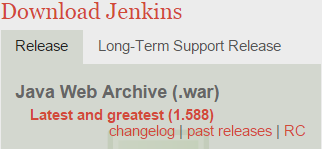
1) Download Jenkins by clicking here:


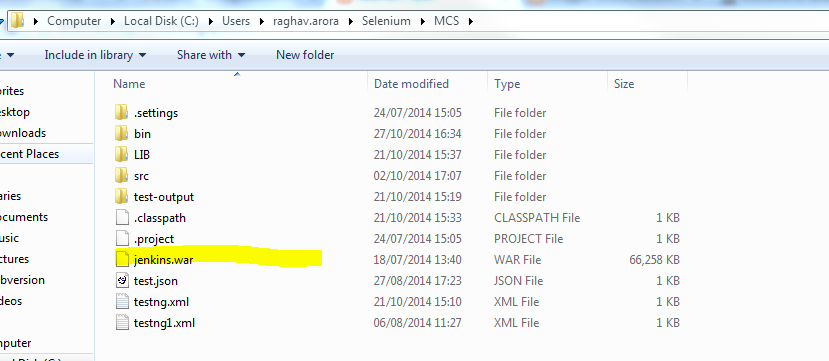
2) Keep the downloaded Jenkins.war file where your project is placed. For Example:


3) Open Command Prompt and go to the project path. Like:


4) After going to that path, write java -jar jenkins.war and press Enter.